
UNIFIED INBOX ON MAC
How to manage multiple email accounts in one Mac app
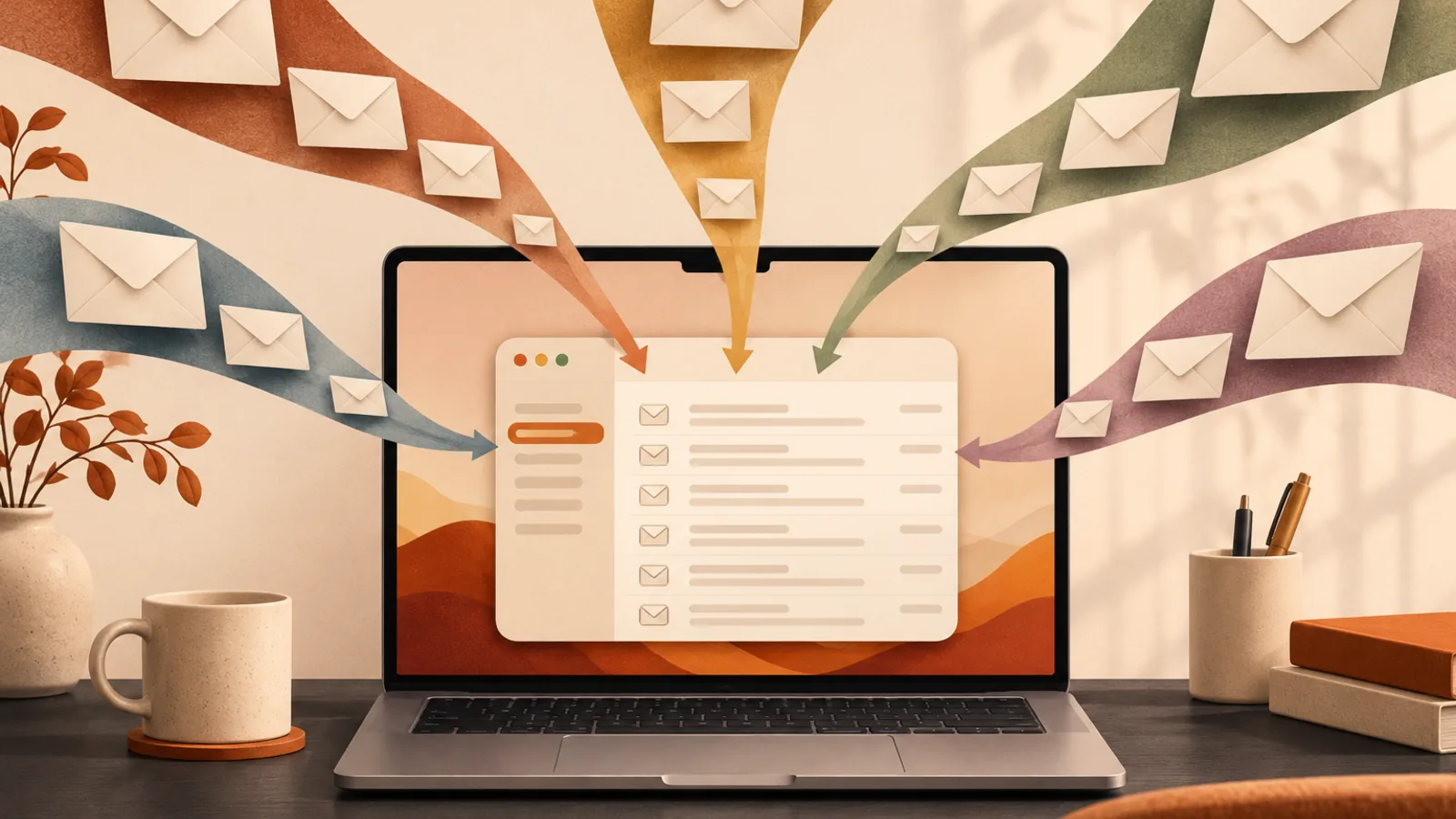
How to combine Gmail, iCloud, Outlook, Yahoo, Fastmail, and custom IMAP accounts in one Mac email app without losing identity, context, or privacy.
QUICK ANSWER
Use one native Mac app that supports every provider you need, keep each account connected separately, and decide which addresses belong in a shared inbox. A unified inbox should reduce switching, not erase the difference between work, personal, and project mail.
Why put every account in one app?
A single app reduces context switching and makes search, notifications, and triage consistent. The goal is fewer places to check, not fewer identities.
Most people now have at least a personal address, a work address, and one or more project or domain addresses. Checking them in different apps creates small but repeated costs: a notification arrives in the wrong place, a search misses the relevant thread, or a reply is sent from the wrong identity.
A unified inbox solves the checking problem. It should keep the From address visible, preserve account-specific signatures, and make the account boundary easy to understand. If an app hides which identity sent a message, consolidation creates a new risk instead of reducing work.
Which accounts can you combine?
Glassmail supports Gmail and Google Workspace, iCloud, Outlook.com and Microsoft 365, Yahoo, AOL, Fastmail, and custom-domain IMAP accounts.
| Account | Typical sign-in | What to check |
|---|---|---|
| Gmail / Google Workspace | App password or provider flow | 2-Step Verification and app-password availability |
| iCloud Mail | App-specific password | Two-factor authentication and full iCloud address |
| Outlook.com / Microsoft 365 | Microsoft sign-in | Work account policy and consent |
| Yahoo / AOL | App password | Provider security settings |
| Fastmail | App password | IMAP access and sending identity |
| Custom IMAP | Server and password | Host, port, SSL, SMTP credentials |
Unified inbox or separate inboxes?
Use a unified inbox for the accounts you check together every day. Keep a separate view for high-volume newsletters, sensitive work, or project addresses that would distract from the main queue.
The mistake is assuming every account deserves the same attention. A support address can be urgent. A newsletter address is not. A personal address may contain both. A good workflow groups messages by the decision they require, not just by the domain they arrived on.
Start with one unified view for the accounts that genuinely need a daily response. Then create clear exceptions. If the app supports account-specific notifications and sending identities, use them. The goal is to know where a message came from without checking five separate places.
A simple triage routine for a mixed inbox
Process one message at a time, decide whether it needs a reply, an archive, a defer, or nothing, and keep the next action visible instead of re-reading the same thread.
- Start with people, not receipts, newsletters, or automated notifications.
- Reply immediately when the answer takes less than two minutes.
- Archive anything that does not need a future action.
- Defer messages that need a later decision and make sure the follow-up is visible.
- Use search for reference material instead of keeping it in the inbox.
- Check the From address before sending from a shared or domain identity.
Keep the privacy boundary clear
Each account still belongs to its provider. A unified app should connect directly to those providers and not insert an extra mail server between your Mac and the account.
Combining accounts does not mean combining their security policies. A work account may require Microsoft sign-in, a personal Gmail account may use an app password, and a custom domain may rely on a mailbox host with its own rules. A good app makes those distinctions visible.
If local AI is part of your workflow, confirm that the assistant can process your messages on the Mac rather than sending all connected accounts to a single AI service. The privacy decision applies to the whole inbox, not only the account you use most often.
Setup checklist
Connect one account at a time, test sending, then add the next account. Keep the old app available until every identity and folder is verified.
- Choose the exact address you want to send from for each account.
- Verify the display name and signature.
- Check Inbox, Sent, Archive, Trash, and any custom folders.
- Send a test message to yourself and confirm it appears in Sent.
- Enable only the notifications that require action.
- Run a search across all accounts for a known message.
- Remove the old app only after a few days of normal use.
Frequently asked questions
Can I use Gmail and iCloud in the same Mac email app?
Yes. Glassmail supports Gmail, Google Workspace, iCloud, Outlook, Yahoo, AOL, Fastmail, and custom IMAP accounts in one Mac app.
Will a unified inbox mix my work and personal mail?
It can if you choose one combined view for everything. A better setup is to unify the accounts you check daily and keep separate views or notifications for accounts that need different attention.
Do I need a separate app password for each account?
It depends on the provider. Gmail, iCloud, Yahoo, and similar services may require an app-specific password for a third-party mail client. Microsoft accounts usually use the provider's sign-in flow.
Can local AI search across all my accounts?
In Glassmail, the assistant is designed to work with mail already synced on the Mac. It can search across the connected accounts you have added, while the model inference stays local.
Does combining accounts change my email provider?
No. Each account remains with its provider. The Mac app is a client that connects directly to those accounts; it does not move your mailbox to a new mail service.